
BARTEC ET60/65EX2 Windows Tablet
Resetting the device
There are five reset functions:
- Restarting the device
- System properties – revert to a previous point in time
- Factory reset via System / Recovery
- Factory Reset via Repair function
- New installation of operating system
Further information on the reset options:
See the Zebra product reference guide.
=========================================================
Restarting the device
=========================================================
If the device is running slow or some applications are not functioning properly, restart the device.
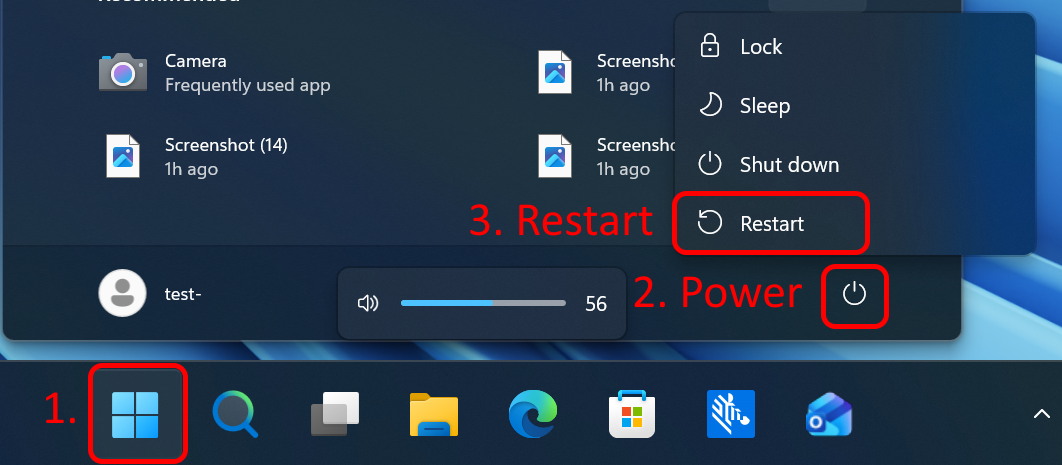
- Touch the Windows icon.
- Touch “Power” and select “Restart”.
- The device shuts down and restarts.
=========================================================
System properties – revert to a previous point in time
=========================================================
A Windows restore point saves the current state of your system settings, drivers, and programs. It allows you to restore your PC to a previous, working state in the event of errors or after faulty updates. Your personal files (documents, pictures) remain intact.
Microsoft - System Restore
- Open the search bar.
- Type “System Properties” and press Enter.
The “System Properties” window will appear.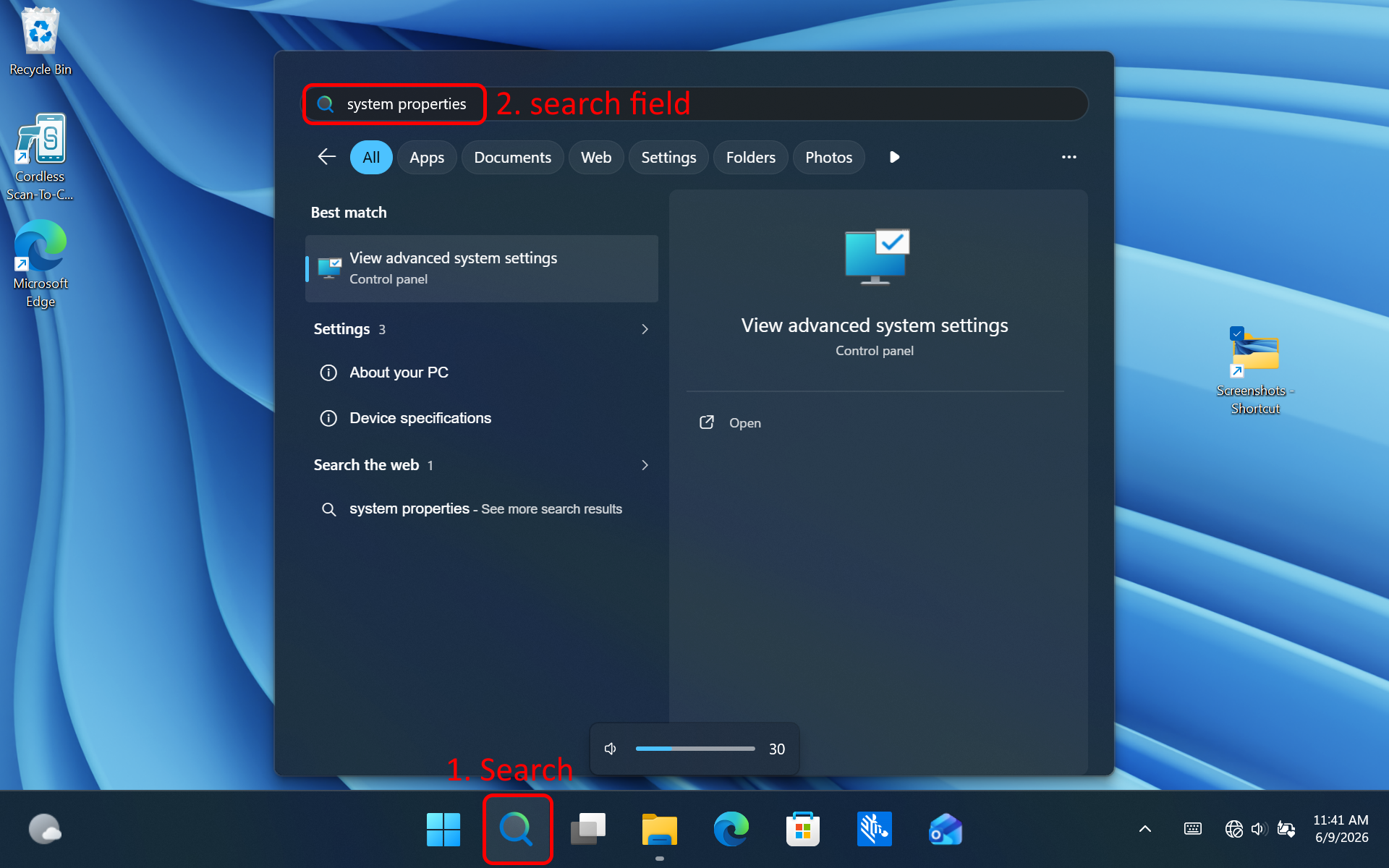
- Select the “System Protection” tab.
Configure your protection settings.
By default, this feature is turned off.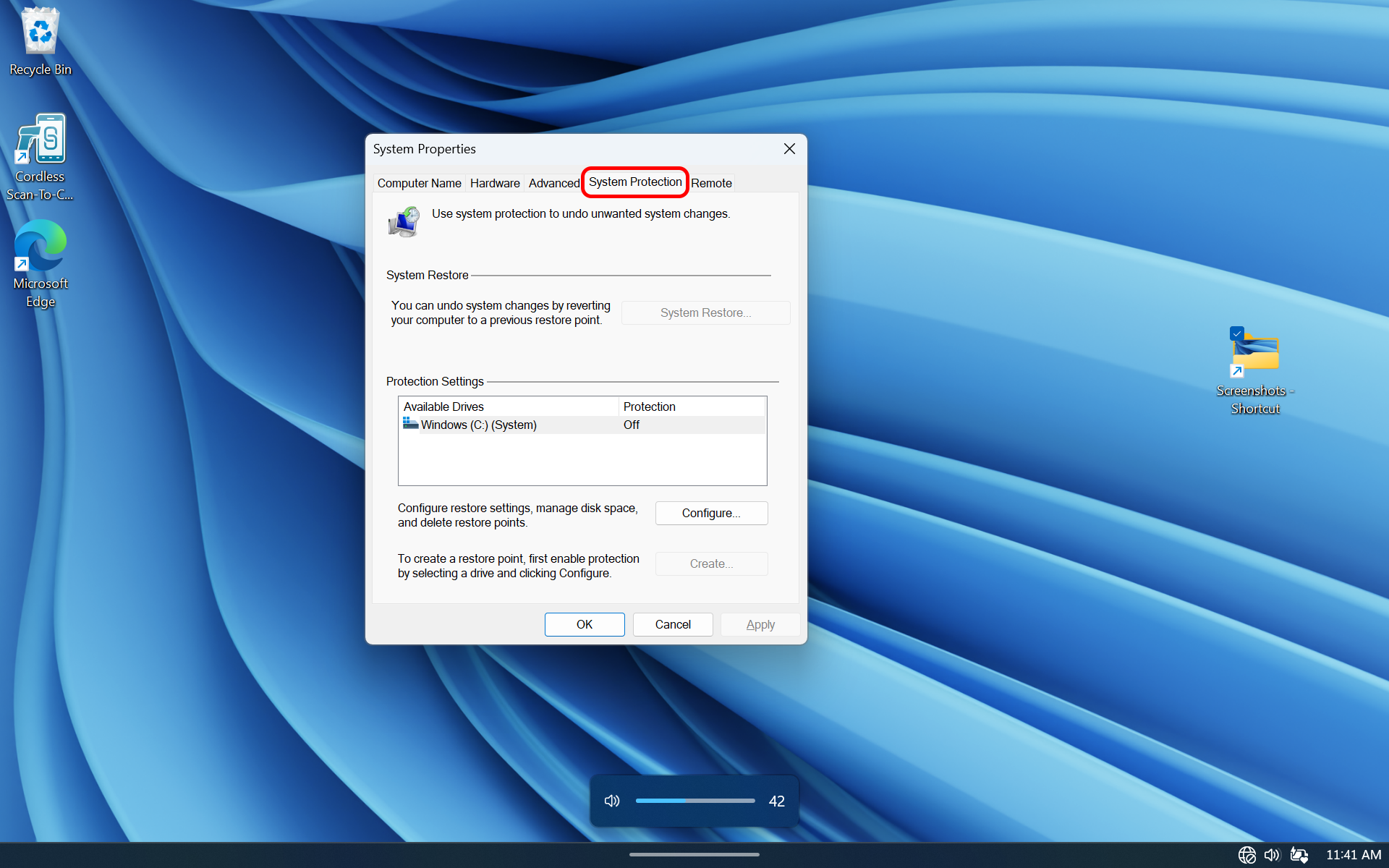
Note: If you have created a restore point, you can restore it from this menu or using the Repair menu (WinRE).
=========================================================
Factory reset via System / Recovery
=========================================================
A factory reset restores Windows to the original factory settings.
- Connect the device to a power source.
- Tap the Network, Sound, and Battery icon on the taskbar.

- Select the gear
 icon to open the settings.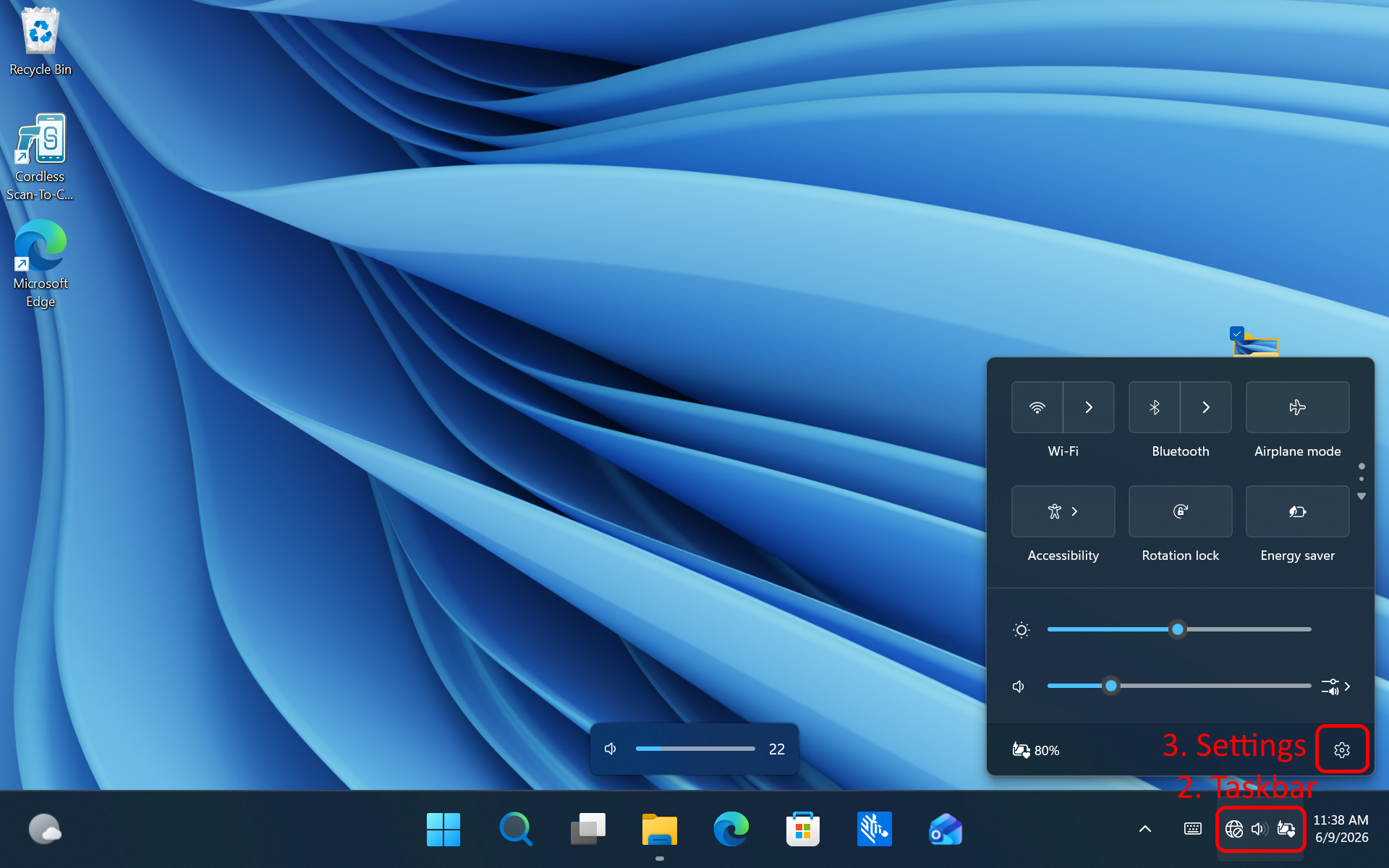
- Touch “System” and select “Recovery”.
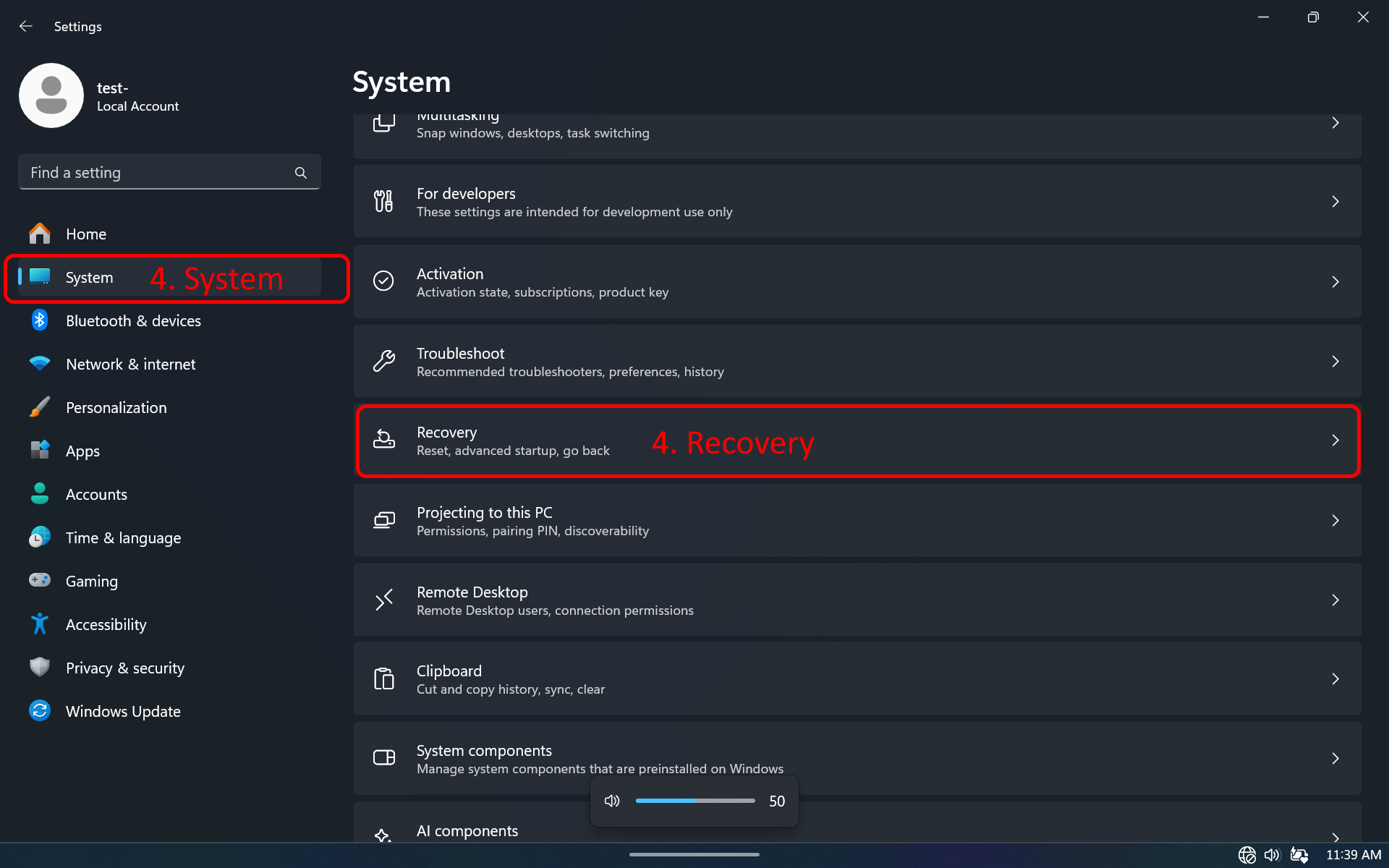
- Touch "Reset PC".
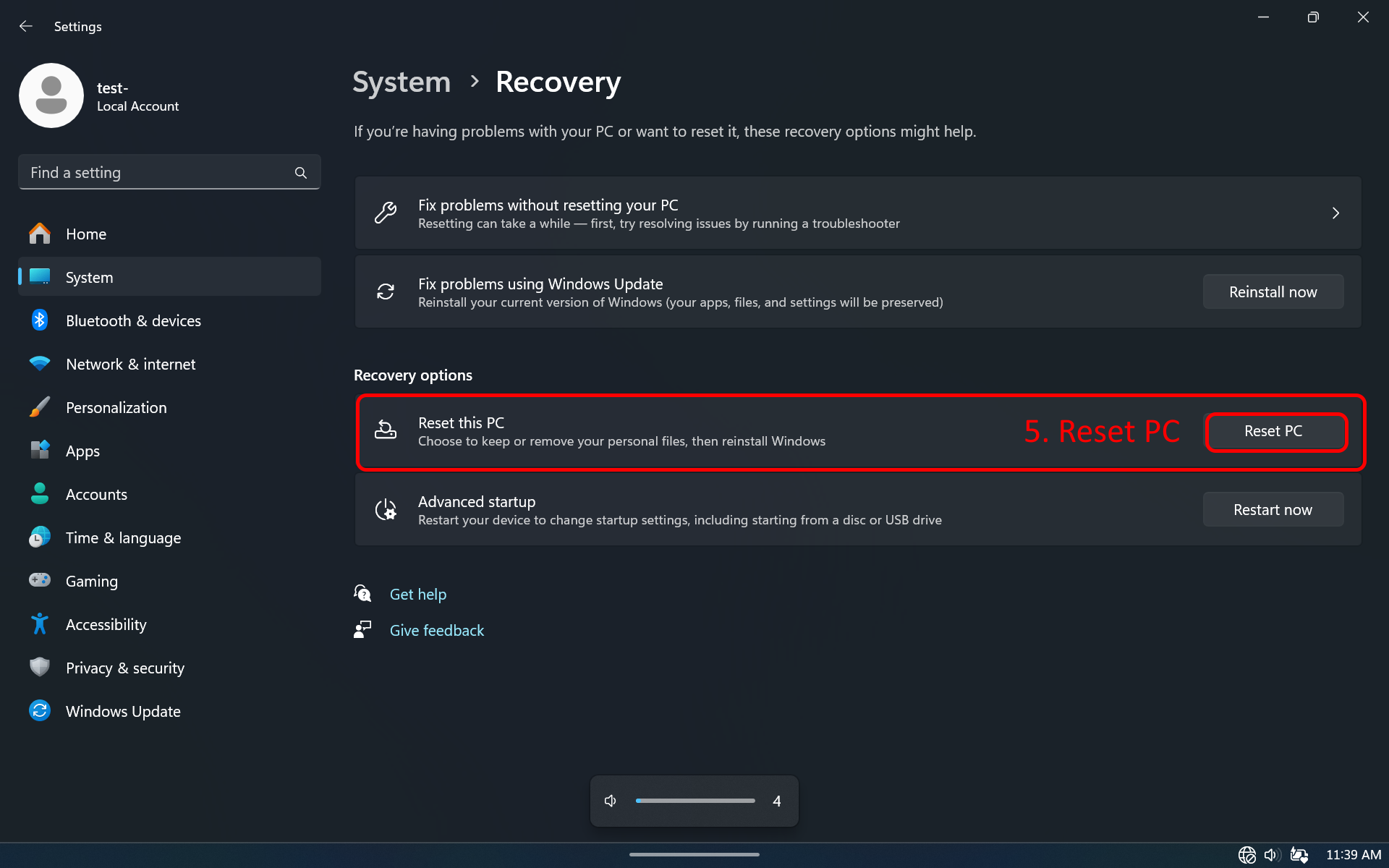
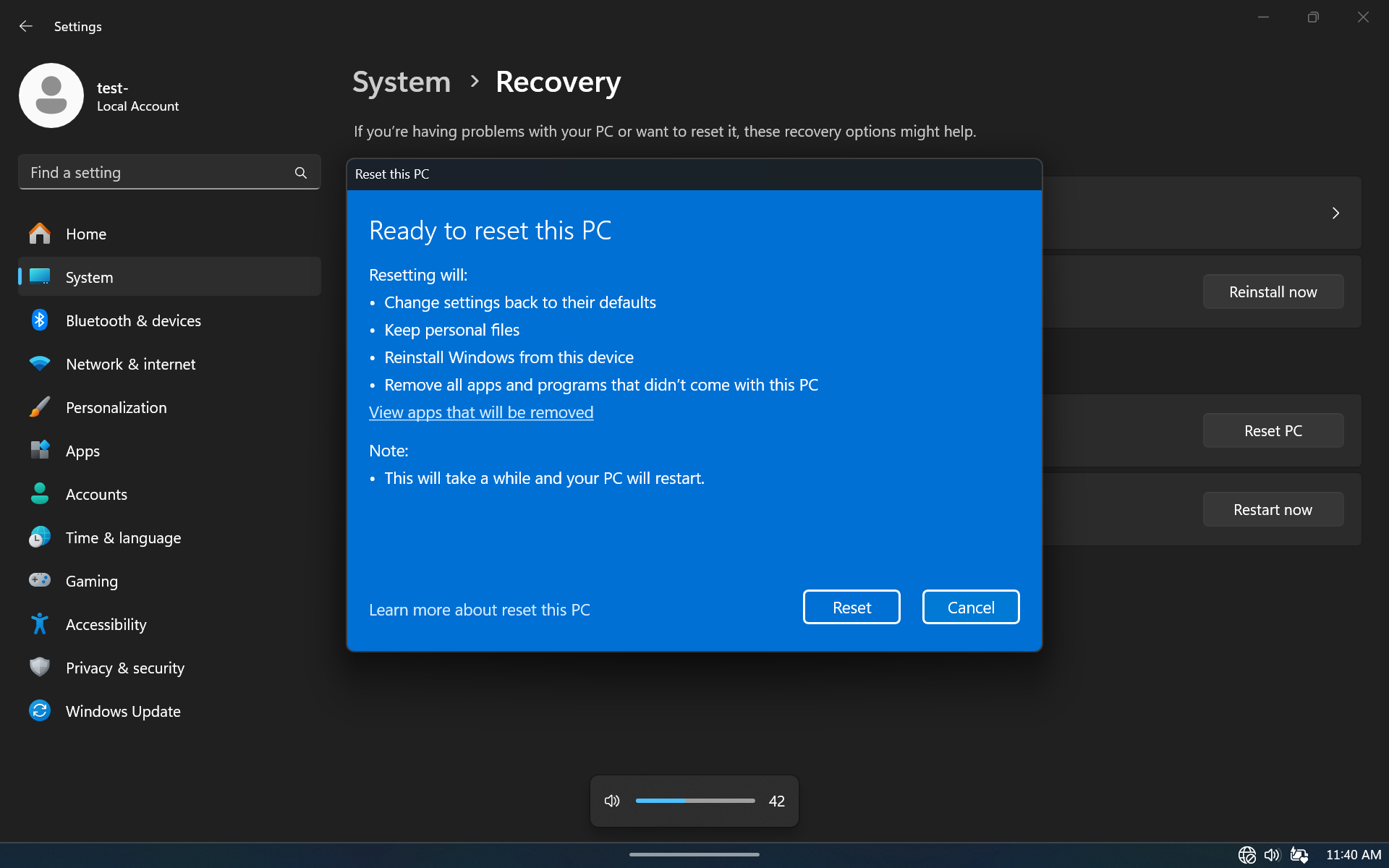
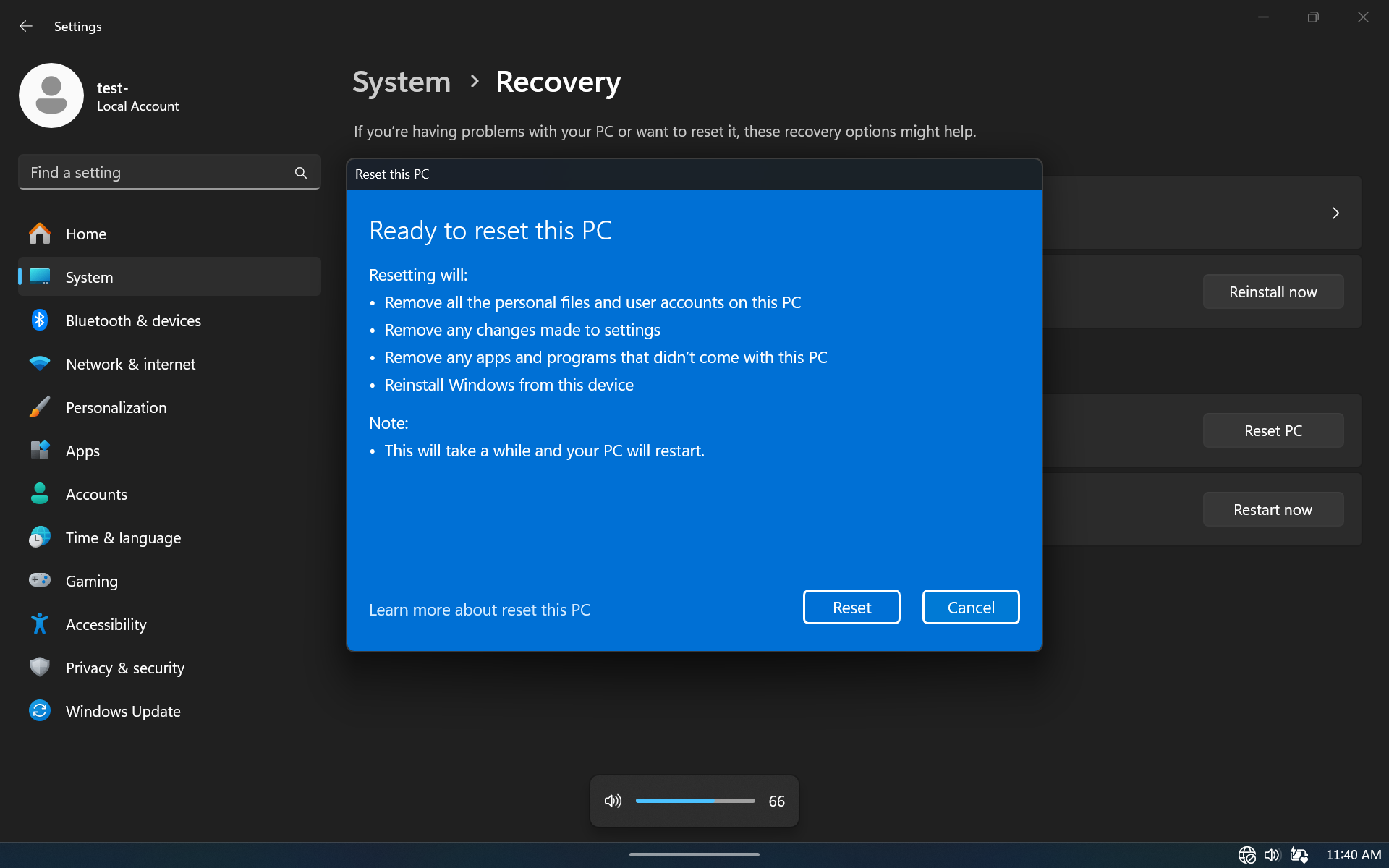
- Touch “Keep my files” to remove all apps and settings but keep all personal files or “Remove everything” to remove all personal files, apps, and settings.
CAUTION: Removing everything erases all data, including your account configuration, applications, music, pictures, and files. Make sure that you back up all the required data before you proceed.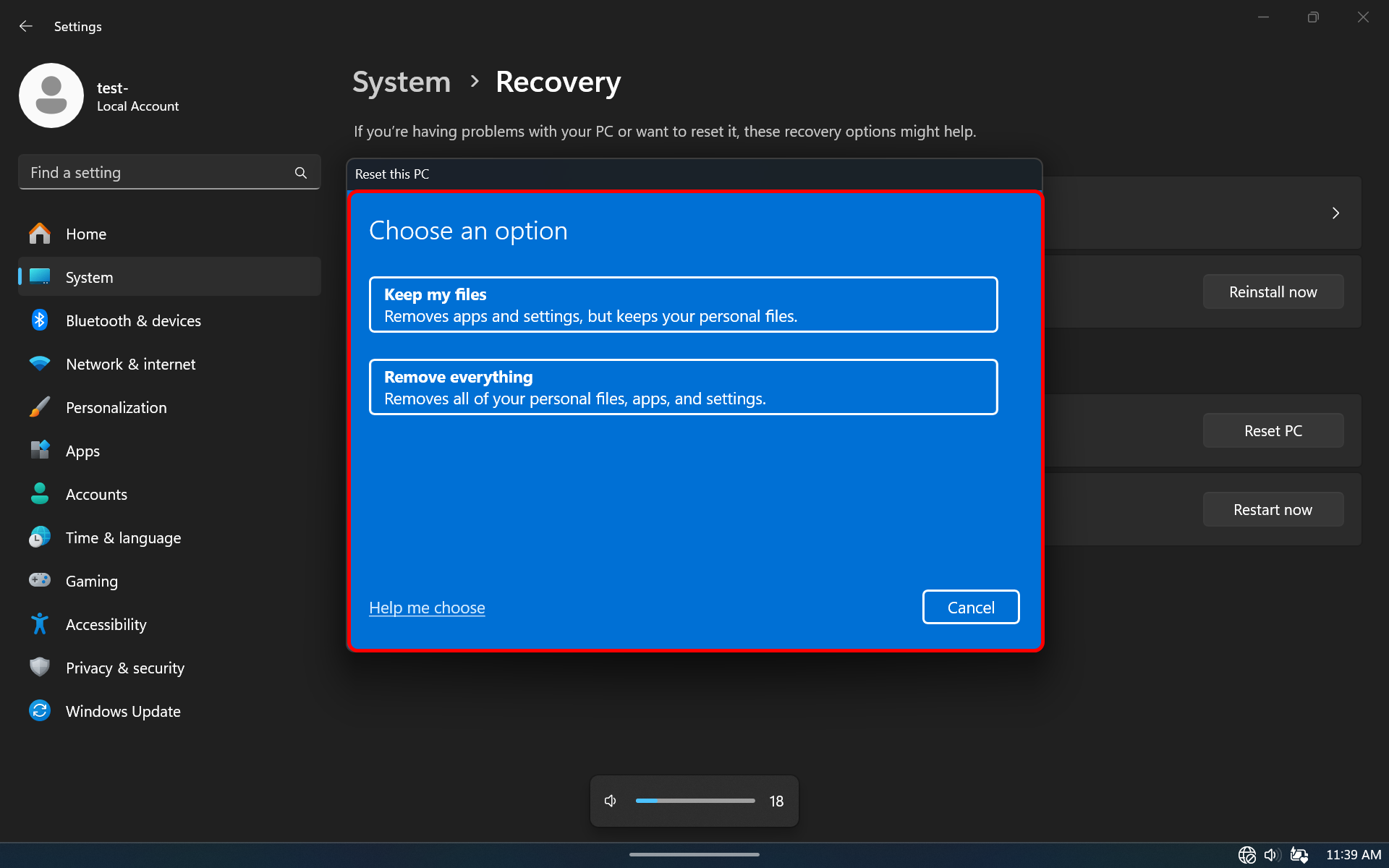 Screens - Keep my files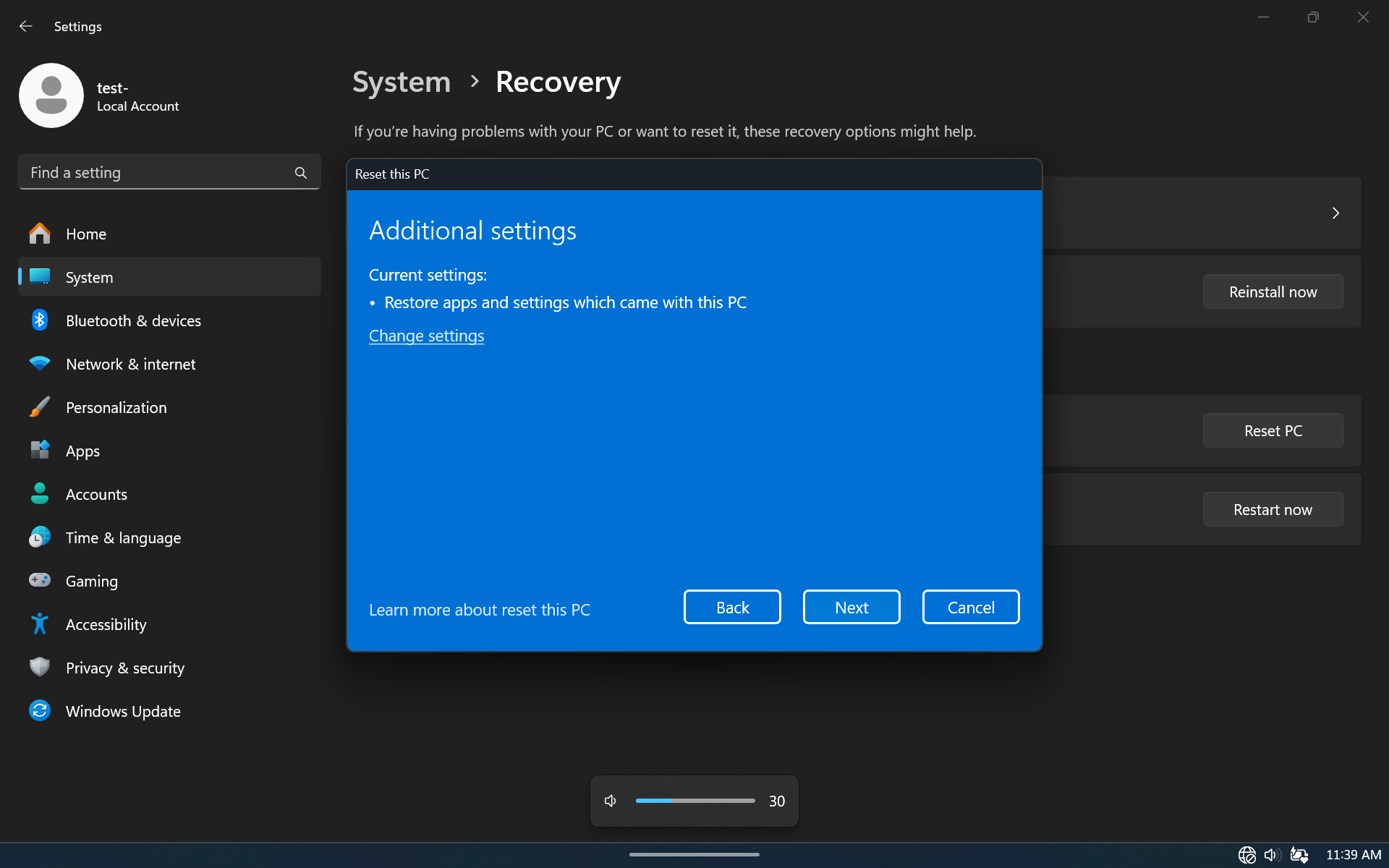
 Screens - Remove everything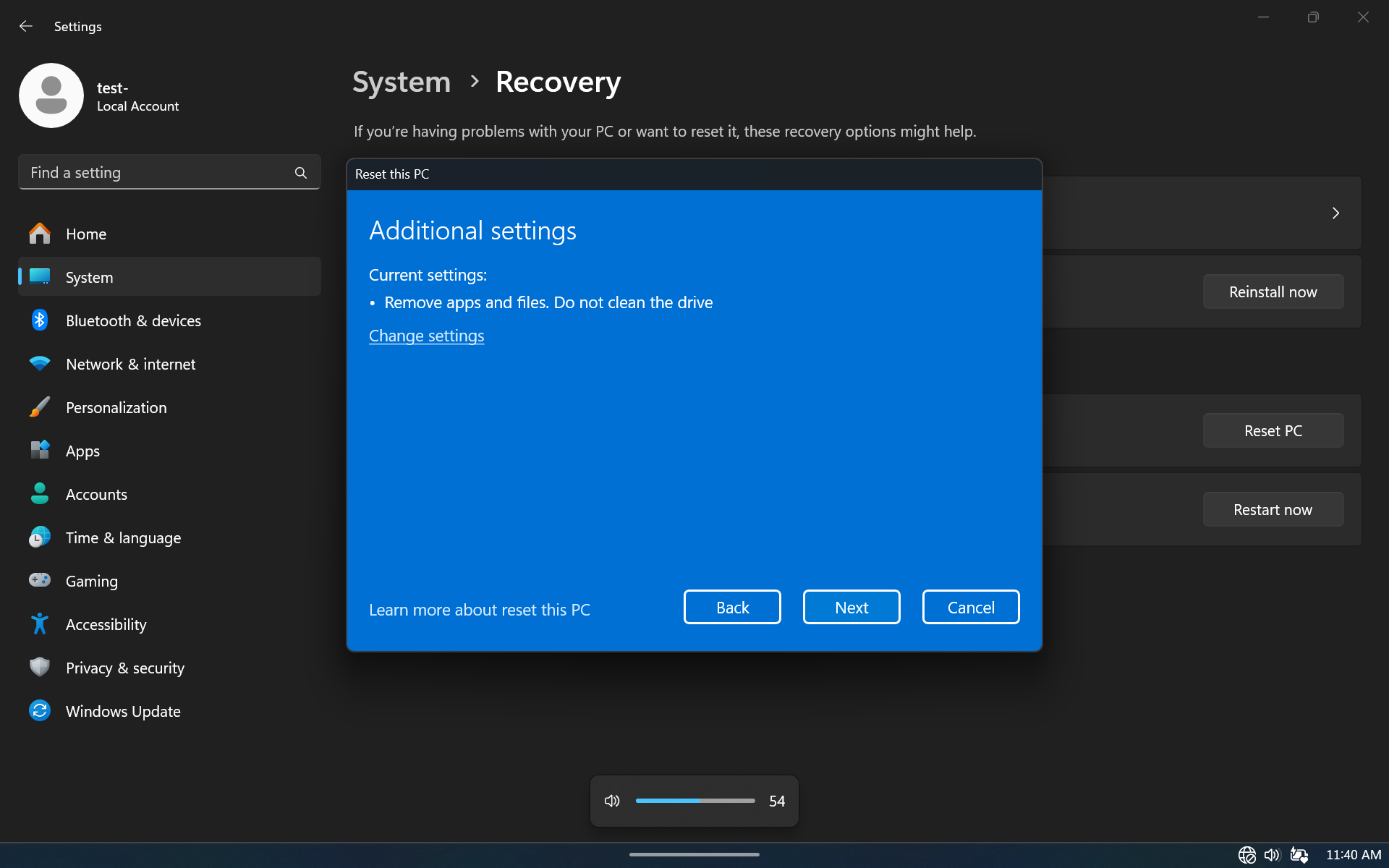
- Touch “Next”.
- Select “Cloud download” or “Local reinstall”.
- Touch “Next”.
- Touch “Next”.
The process can take an hour or longer. When the reset is complete, the Windows setup process begins.
=========================================================
Factory Reset via Repair function
=========================================================
A factory reset restores Windows to the original factory settings.
If Windows won't start or you can't log in, you can use the Repair menu (WinRE).
The Windows Recovery Environment (WinRE) is a platform built into Windows that allows you to troubleshoot startup issues, perform system restores, or access advanced options such as the Command Prompt and Safe Mode. It can be launched while the system is running via the Settings menu or forced to start if the PC fails to boot.
Note: Connect the device to an external power source or make sure the device is charged.
To enter the Windows Recovery Environment (WinRE) on a Windows 11 tablet using only the power button, you need to trigger the Automatic Repair mode by interrupting the boot sequence.
- Power Off: Hold down the Power button for about 10–15 seconds to ensure the tablet is completely shut down.
- Turn On: Press the Power button once to turn the tablet back on.
- Interrupt: As soon as the Zebra start screen logo appears, hold down the Power button for approximately 10 seconds to to force the device to shut down.
- Repeat: Turn the tablet on, and again, hold the power button down during the boot/logo screen to force another shutdown. Do this 2 to 3 times in a row.
- Boot to WinRE: On the next restart, let the tablet boot up completely without interrupting it. Windows will detect the multiple failed attempts and display an "Automatic Repair" or "Choose an option" screen.
- Select “Advanced options”.
- Select “Troubleshoot”.
- Select "Reset this PC”.
- Touch “Keep my files” to remove all apps and settings but keep all personal files or “Remove everything” to remove all personal files, apps, and settings.
CAUTION: Removing everything erases all data, including your account configuration, applications, music, pictures, and files. Make sure that you back up all the required data before you proceed. - Select “Cloud download” or “Local reinstall”.
- The reset menu is loading. This may take a moment.
- Select “Reset” to start the procedure or “Cancel”.
- The reset starts.
The process can take an hour or longer. When the reset is complete, the Windows setup process begins.
=========================================================
New installation of operating system
=========================================================
If none of the previous options worked, you can reinstall the operating system.
Warning: A reinstallation will delete all settings and data.
How to do is described in a Zebra article - Installing Complete Windows 11 Professional Operating System Image
See our article about operating system.